
How to Edit Text in a PDF on Windows (Step-by-Step Guide)
Learn how to edit text in a PDF on Windows: fix typos, change numbers and replace words while keeping the original font and layout.
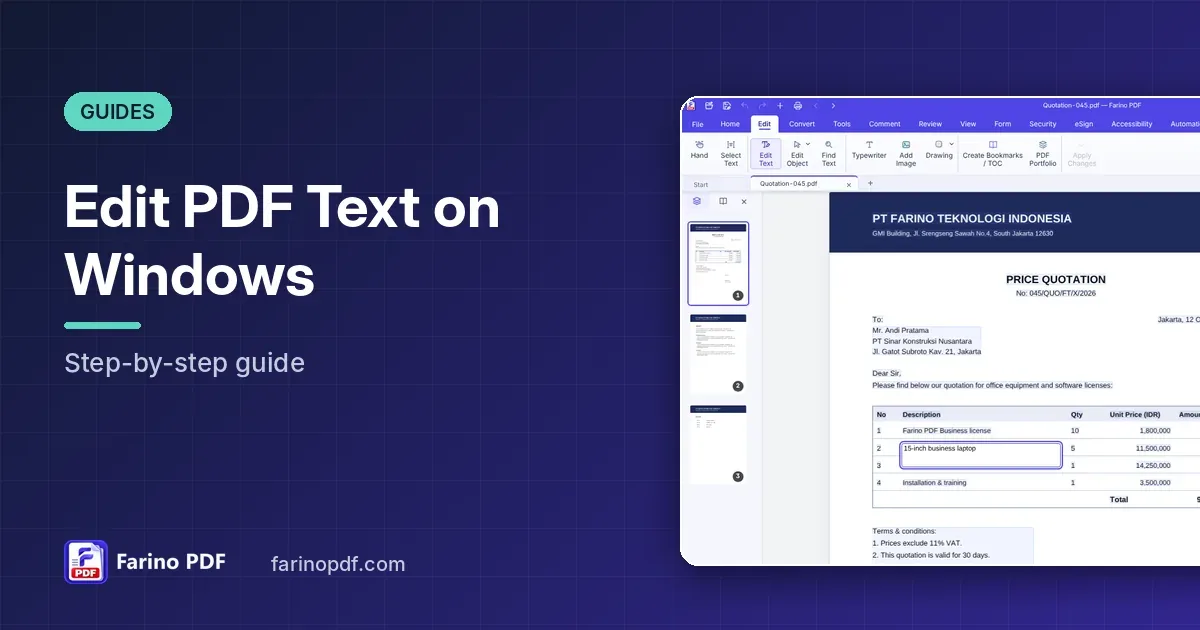
You received a PDF, spotted a wrong date in the second paragraph, and the person who made the file is not available. It happens every day in offices around the world. The good news is that you do not need the original Word file to fix it. With a desktop PDF editor such as Farino PDF, you can change the text directly on the page and keep the document looking exactly as it did before.
This guide explains how to edit text in a PDF on Windows, how fonts are handled, and what to do when the text cannot be selected.
Why editing a PDF feels harder than editing a Word file
A PDF is designed to look the same on every screen and printer. To achieve that, it stores text as positioned pieces rather than flowing paragraphs. That is why many tools ask you to convert the PDF to Word, edit it there, and convert it back, which often breaks the layout. Editing in place avoids that round trip: you only change the words that need changing, and everything else stays untouched.
How to edit text in a PDF with Farino PDF
Before you start, open the PDF in Farino PDF. Editing text requires the Pro edition or higher; you can compare editions on the pricing page.
- Click Edit › Edit Text. Every block of text on the page gets a thin outline, so you can see what is editable.
- Click the block you want to change. An edit box appears directly over the original text.
- Type the new text. Press
Enterif you need a new line. - Press
Ctrl+Enter, or click outside the box, to keep the change. PressEscif you want to cancel. - When you are happy with all edits, click Edit › Apply Changes and save the file with
Ctrl+S.
Editing a line of text directly on the PDF page in Farino PDF
What happens to the font?
A common worry is that edited text will look different from the rest of the page. Farino PDF reduces this risk in three ways:
- The font style (sans serif, serif or monospace), bold, italic and size are taken from the original text.
- Text and background colours are sampled from the page, so the edit blends in.
- Longer text, line breaks or special characters are reflowed with an embedded font, so the result displays correctly on any computer.
If you prefer full control, hold Alt and click a line to open the Replace original text editor in the right panel. There you can choose Auto, Sans, Serif or Mono before saving.
Adding new text instead of changing old text
Sometimes you do not want to change existing words; you just need to add a note, a name or a missing line. For that, use Edit › Typewriter. Click anywhere on the page and start typing. You can set the font, size, bold, italic, underline, colour and line spacing in the Typewriter panel. The Typewriter, images, drawings and Find Text are available in every edition, including the free one.
The Edit tab in Farino PDF with Edit Text, Edit Object, Typewriter and Add Image
Find and replace a word across the document
If the same mistake appears many times, editing each occurrence by hand is slow. Press Ctrl+F to search, then Ctrl+H to open replace. Type the new word in Replace with… and click Replace selected. This is perfect for correcting a misspelled company name or an outdated product code.
What if the text cannot be selected?
If clicking the page selects nothing, the PDF is probably a scanned image. In that case there is no text to edit yet. Run OCR first to recognise the words, as explained in our guide to making a scanned PDF searchable. After recognition, the text can be searched and copied.
Tips for clean, professional edits
- Keep the original. Use File › Save As to save the edited version under a new name.
- Edit in short pieces. Changing one line at a time keeps the layout tidy.
- Check numbers twice. Prices, dates and account numbers matter most in contracts and invoices.
- Apply changes before sharing. Pending edits are only written into the file after Apply Changes.
Frequently asked questions
Can I edit a PDF without converting it to Word? Yes. Farino PDF edits text directly on the page, so the layout of the rest of the document stays the same.
Is PDF editing free in Farino PDF? Adding new text with the Typewriter, adding images and drawing are free. Changing existing text needs the Pro edition. See the pricing page for details.
Does editing a PDF need an internet connection? No. Editing happens on your computer, so your documents are not uploaded anywhere.
Conclusion
Editing a PDF no longer means hunting for the original file or retyping the whole document. With Farino PDF you can fix text in place, keep the original look and save a clean copy in minutes. Download Farino PDF to try it, and visit the pricing page when you are ready to unlock full text editing.