
FARINO PDF 1.63
1. Installation and setup
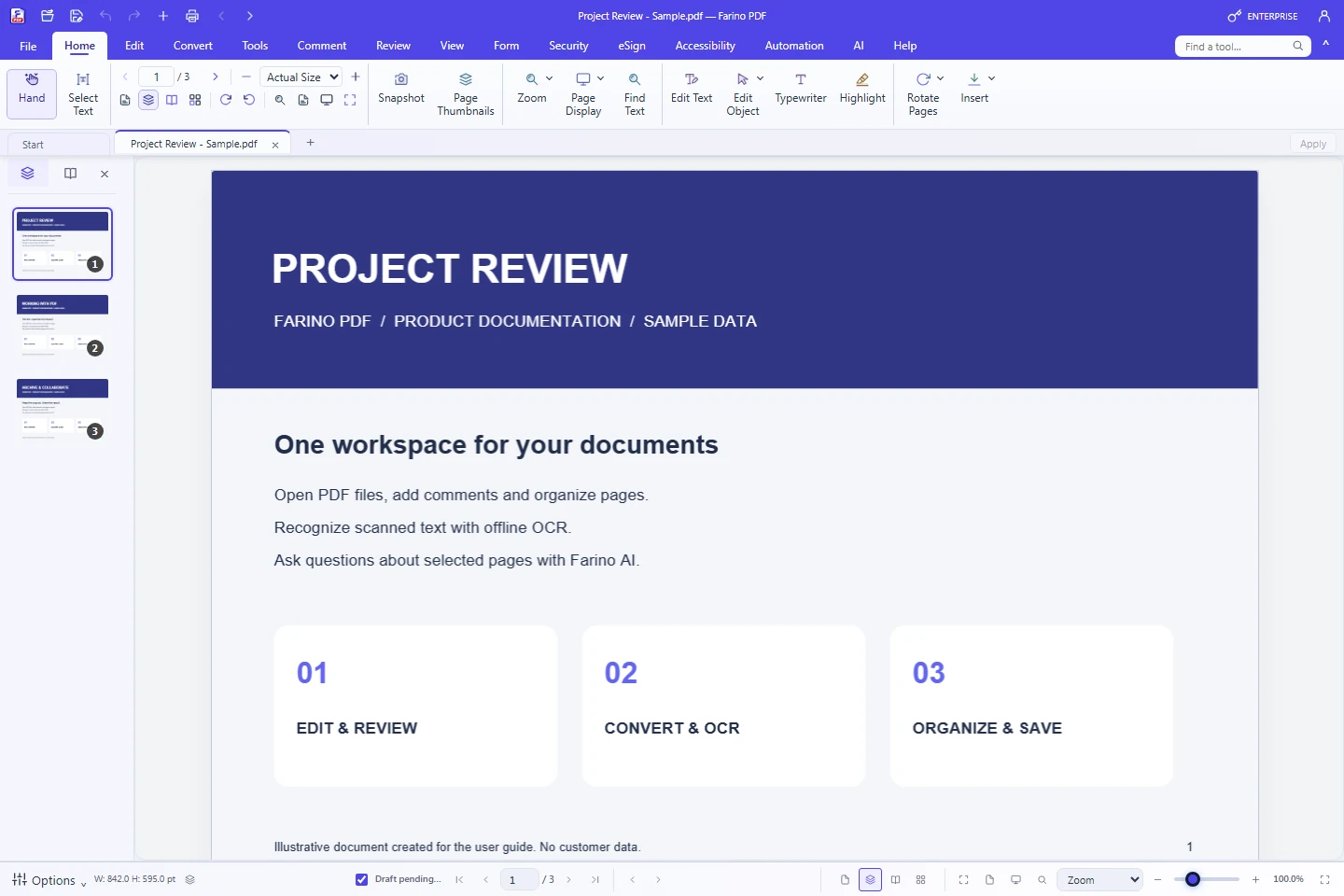
Farino PDF is a Windows desktop application for reading, editing, reviewing and processing PDF documents.
- Download the official installer from Download. Save open work before updating.
- Run Setup and follow Windows instructions. The installer selects 64-bit components on 64-bit Windows and x86 components on 32-bit Windows 10.
- Microsoft Edge WebView2 Runtime is required for the interface. Setup includes the Microsoft bootstrapper; downloading the runtime may require internet.
- Open Farino PDF. Use Help > Preferences to choose Light, Dark, or System.
FARINO PDF 1.63
2. Account, license and trial
Your account connects desktop activation with the customer portal. Desktop licenses and AI credit packs are separate products.
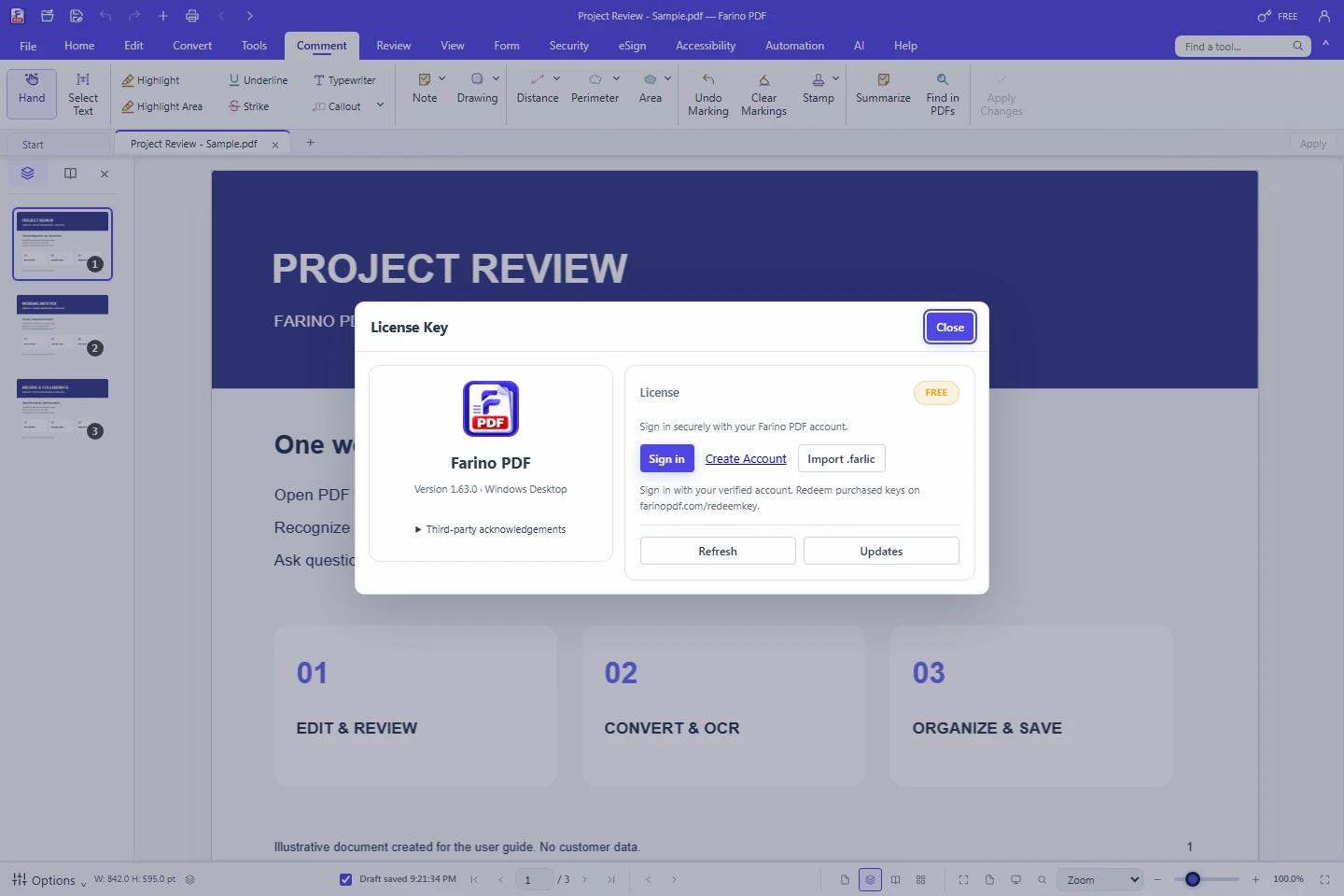
- Choose Help > License Key, then Sign in. Complete login and verification in the official account window.
- Choose an available license. The summary shows the active edition, masked key suffix, maintenance and device usage.
- Eligible accounts can start a 30-day Business trial. After expiry the app returns to Free features unless another active license is available.
- Use Refresh to update status. Import FARLIC in License Key accepts an offline activation file issued for this installation.
FARINO PDF 1.63
3. Your workspace
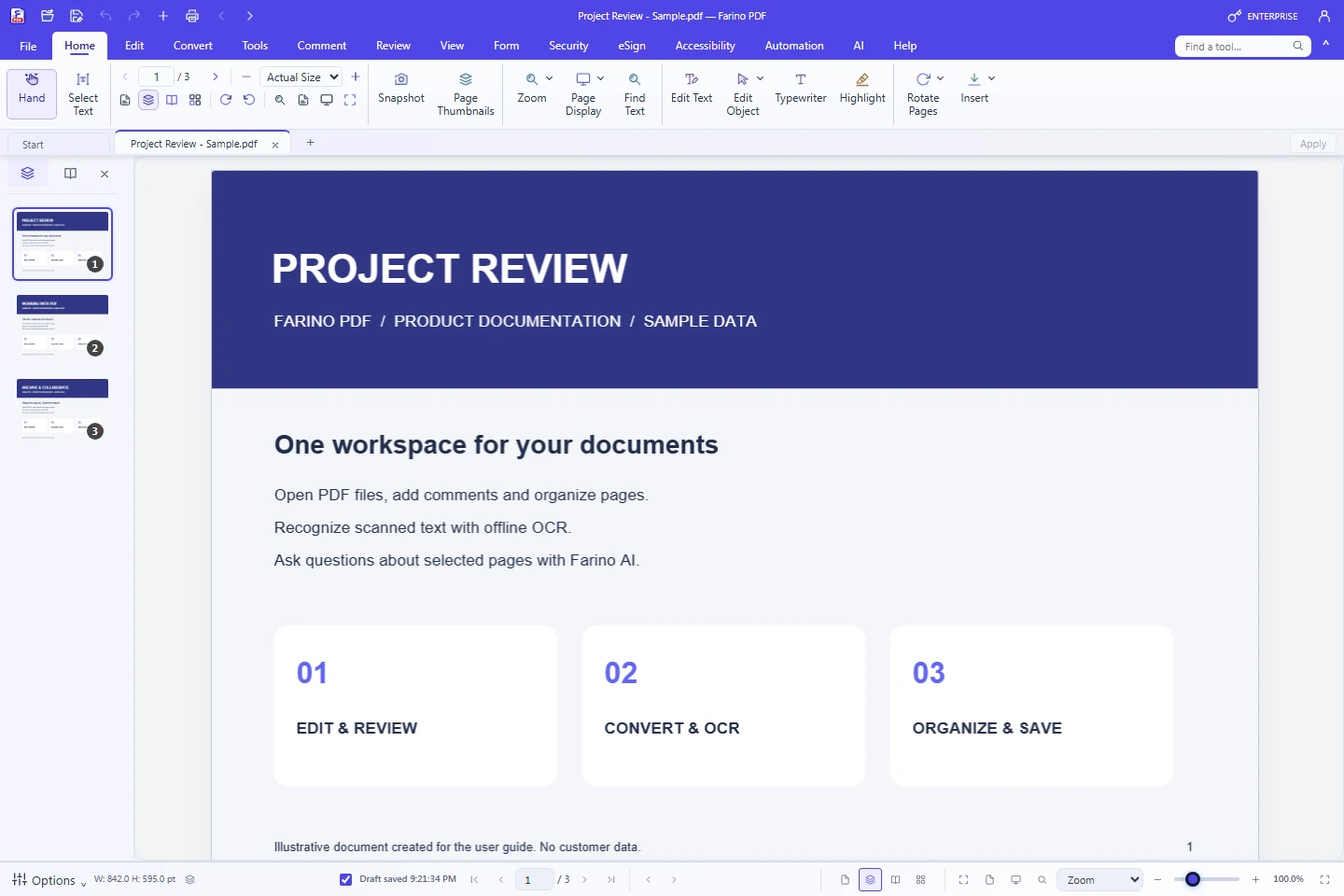
The top bar contains Open, Save, Undo, Redo, Print and Previous/Next Page. The ribbon groups tools by workflow.
- Choose Home, Edit, Convert, Tools, Comment, Review, View, Form, Security, eSign, Accessibility, Automation, AI or Help.
- Hover an icon to read its name and tooltip. Small arrows open additional choices.
- Restore the window using the upper-right control, then drag an empty part of the top bar to move it.
- Use Ctrl+K to find a command. F6 and Shift+F6 move focus between workspace regions.
FARINO PDF 1.63
4. Open PDFs and manage tabs
Open multiple PDFs in separate tabs.
- Choose File > Open or the folder icon. Ctrl+O opens the Windows file picker.
- Select a tab to switch documents. The dropdown arrow lists documents when the tab strip is full.
- Right-click a tab for Close Tab, Close Others, Close Left/Right, Copy Path, Open Containing Folder or printing commands.
- Use Open Recent to reopen earlier files. Save your changes before closing a tab.
FARINO PDF 1.63
5. Navigation, zoom and page views
Home provides compact page controls beside Hand and Select Text.
- Enter a page number or use the left/right arrows. Scroll through pages in Continuous mode.
- Choose Single Page, Continuous, Two Page or Continuous Facing Pages for your reading workflow.
- Choose Fit Content, Fit Page, Fit Width, Actual Size or the minus/plus zoom controls.
- Hand pans the view. Select Text selects text for copying. Ctrl+F searches the active document.
FARINO PDF 1.63
6. Save and Save As
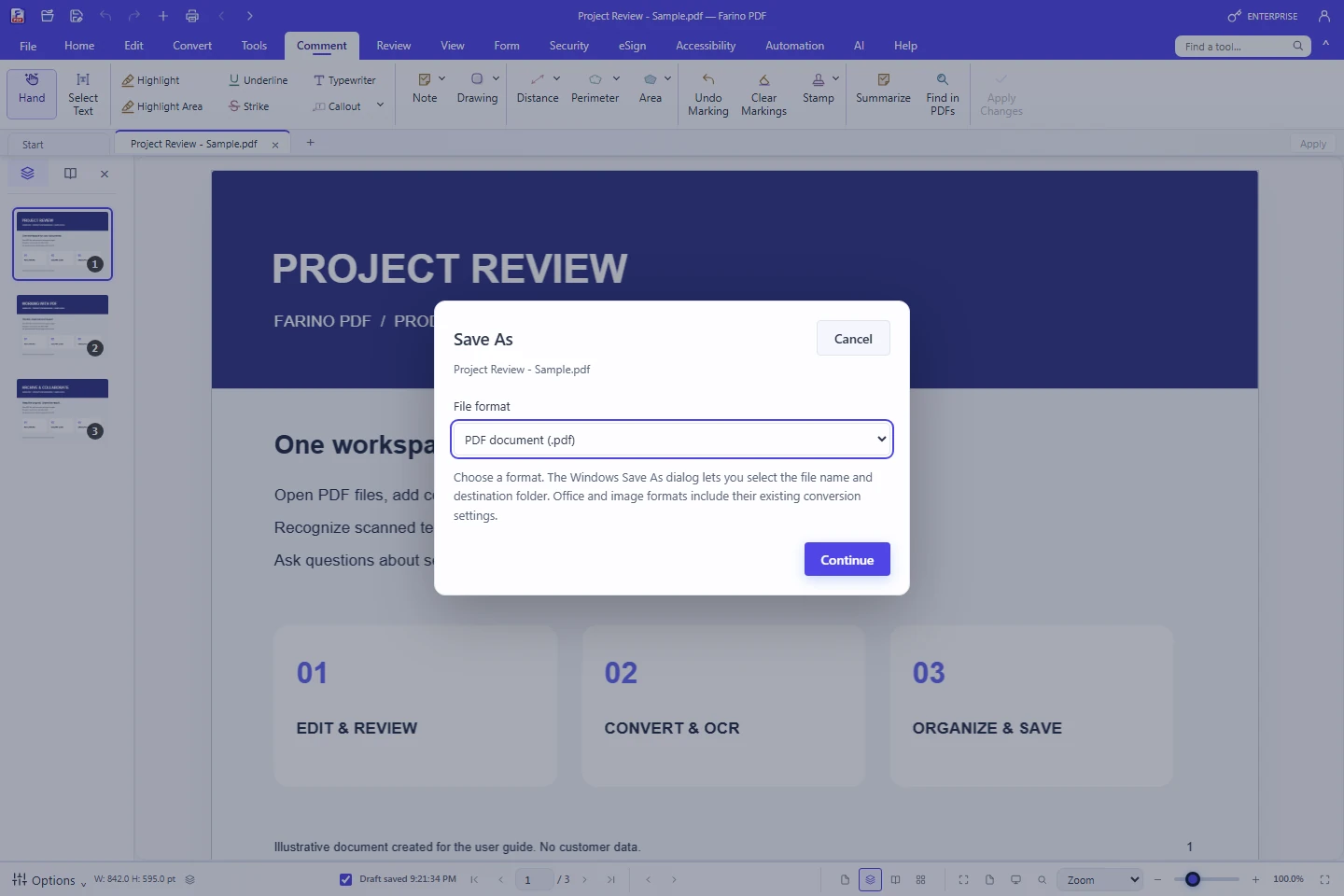
Save writes PDF changes. Save As creates a copy or selects an export format.
- Press Ctrl+S or choose File > Save to save the active PDF.
- Choose File > Save As and select PDF, PDF/A, Word, Excel, PowerPoint, images, Text, HTML, EPUB or Markdown.
- Choose the name and destination in the Windows save dialog. Office/image formats open their relevant conversion settings.
- Inspect exported files before sharing them. Keep your original PDF for future editing.
FARINO PDF 1.63
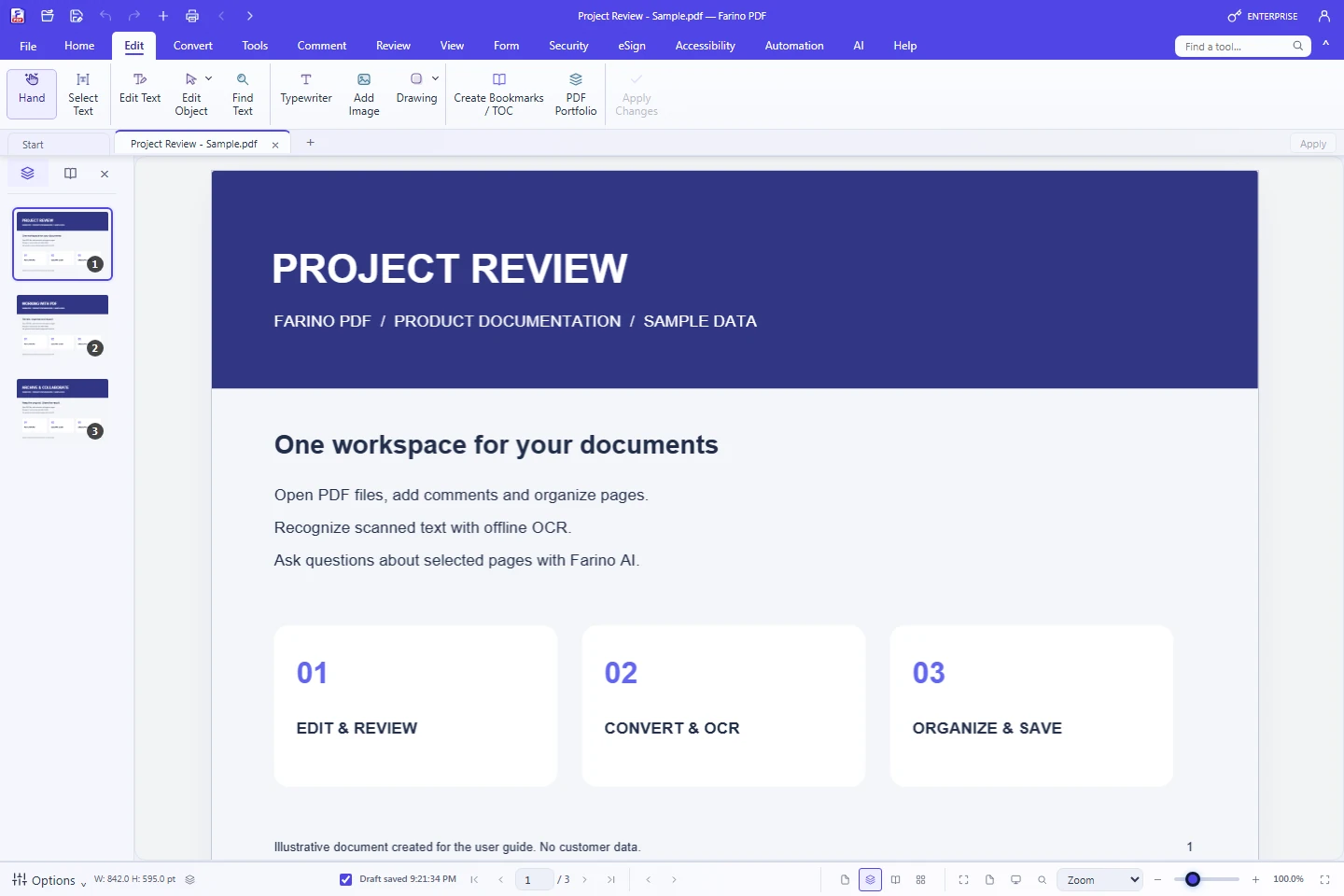
7. Edit text and objects
Editing depends on PDF structure and the licensed edition.
- Choose Edit > Edit Text, select supported text, edit it and press Ctrl+Enter to commit.
- Use Edit Object > Images to select an image. Drag its handles to resize or move it on the page.
- Edit Object > Shapes selects supported shape objects; Edit All broadens the selection.
- Typewriter adds new text without replacing the source text. Apply Changes and Save preserve your work.
FARINO PDF 1.63
8. Markup, Callout and Stamp
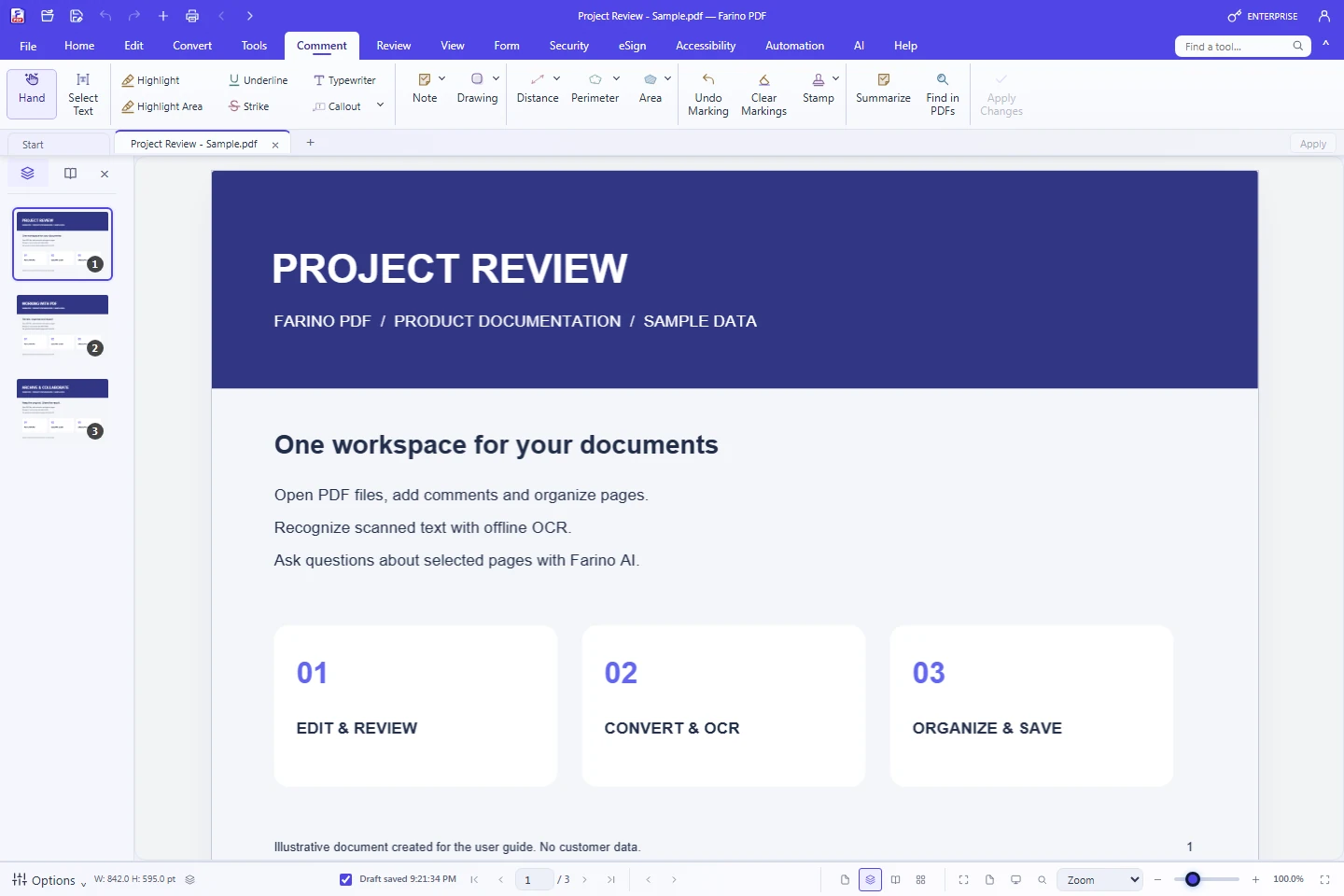
Use Comment to add visual review instructions.
- Choose Highlight, Underline or Strike and mark the text. Highlight Area marks a page region.
- Choose Callout and a color preset, place it on the page and click its text to edit in place.
- Use Drawing for arrows, rectangles or freehand marks. Keep colors consistent across review categories.
- Open the Stamp dropdown, choose a stamp, place it on the page, then Apply Changes and Save.
FARINO PDF 1.63
9. Notes, replies and locking
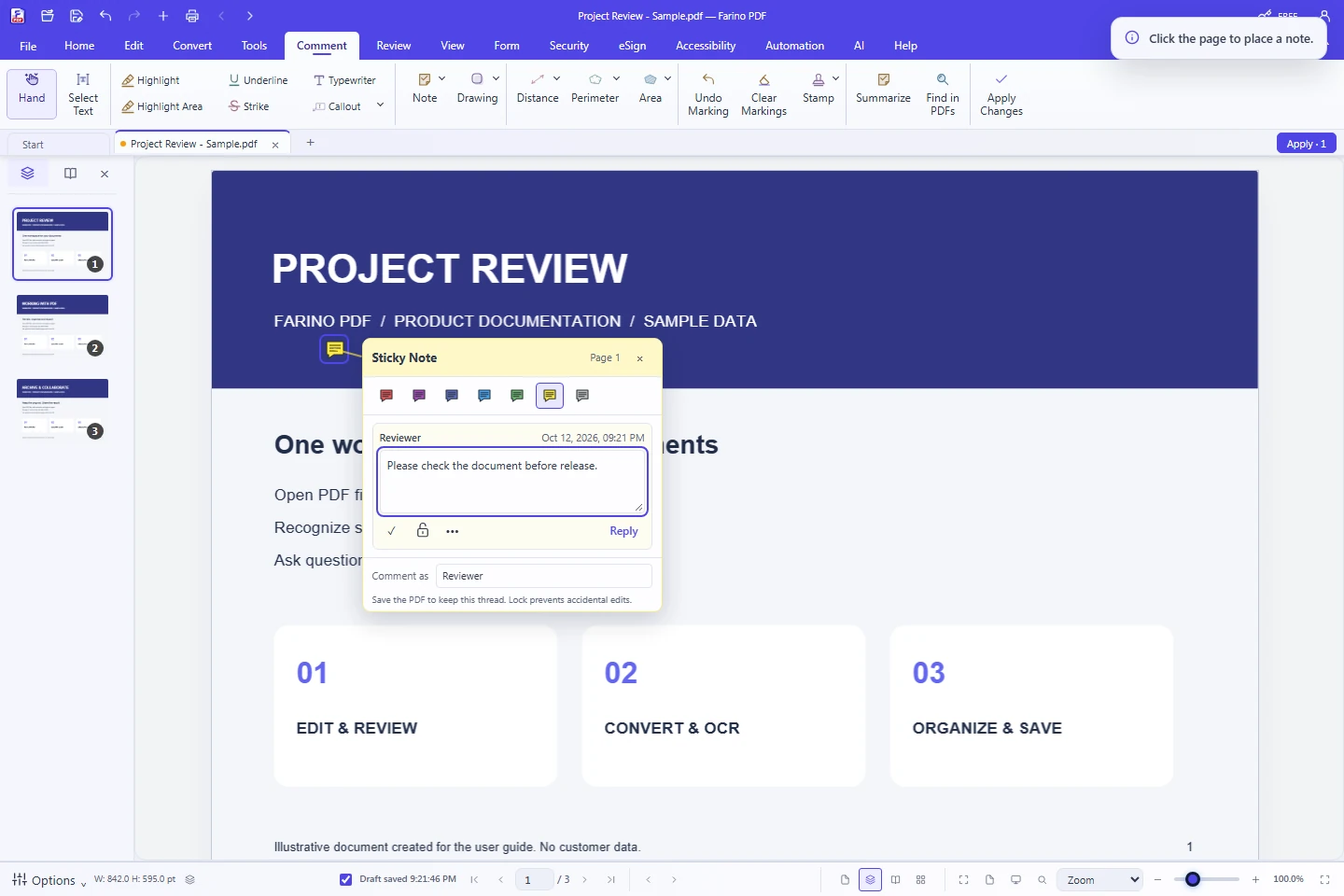
Notes display review conversations directly in the PDF workspace.
- Choose Comment > Note and one of seven colors. Click the page to place a note.
- Enter the note text. Reviewer name, date, year and time appear on each entry.
- Choose Reply to respond. Use the checkbox for status and the lock to lock or unlock supported entries.
- Apply Changes and Save. Share that PDF with another reviewer so they can open and reply to its notes.
FARINO PDF 1.63
10. Distance, Perimeter and Area
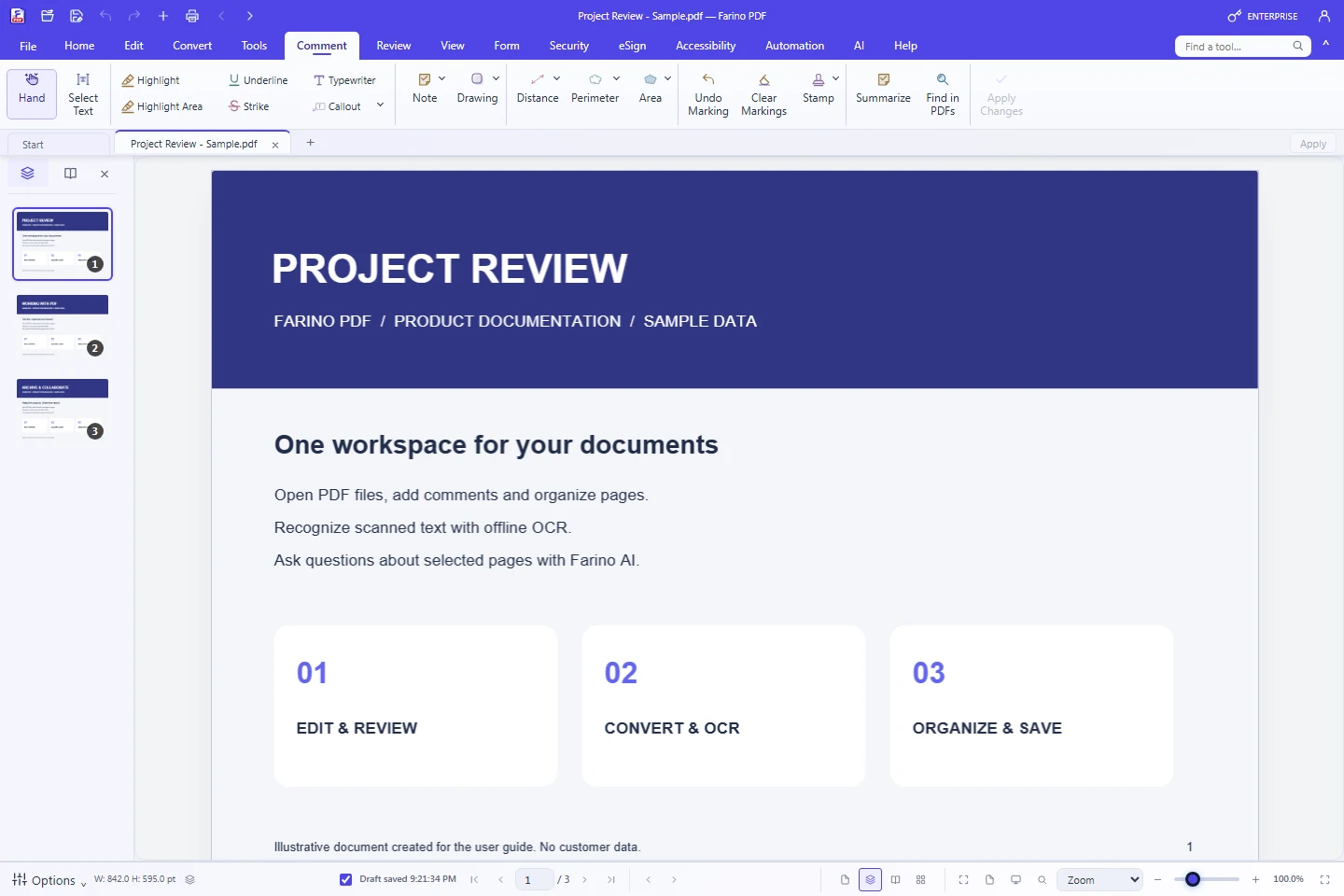
Measurement tools support drawing and technical document review.
- Choose Comment > Distance for two points, Perimeter for multiple segments or Area for an enclosed region.
- Choose a color/style preset and place measurement points on the page.
- Follow the tool instructions to finish the path. Set scale and units against a known drawing dimension.
- Verify measurements against a known dimension, then save markup or use Measure & BOQ for quantity lists.
FARINO PDF 1.63
11. Organize Pages
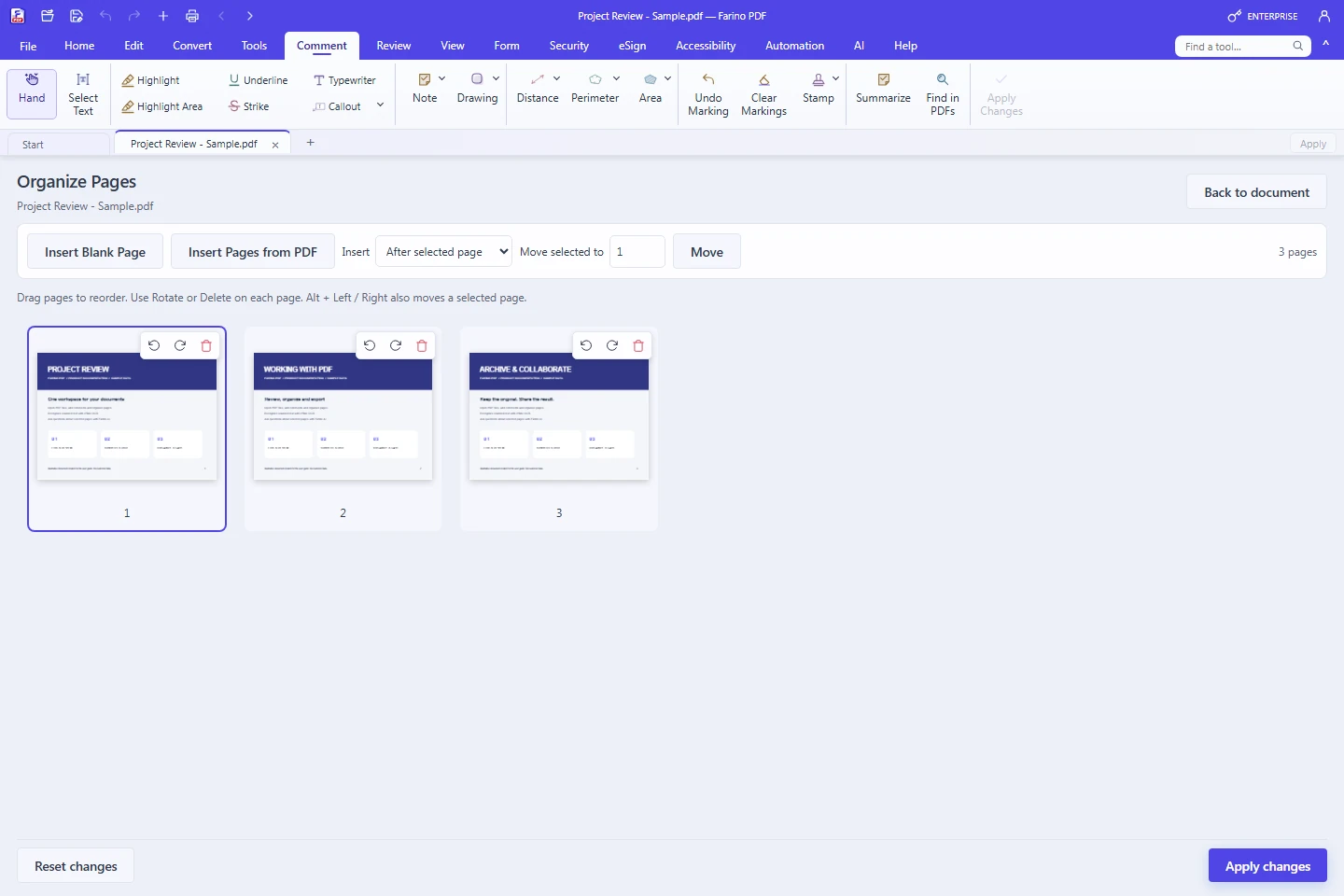
Organize Pages displays page cards in the main workspace.
- Choose Tools > Organize Pages to show the page grid.
- Drag a page card to a new position. Use Rotate Left/Right or Delete for the selected page.
- Use Insert Blank Page or Insert from PDF. Newly inserted cards can be moved like other pages.
- Return to document view, check the page sequence and Save.
FARINO PDF 1.63
12. Merge and split
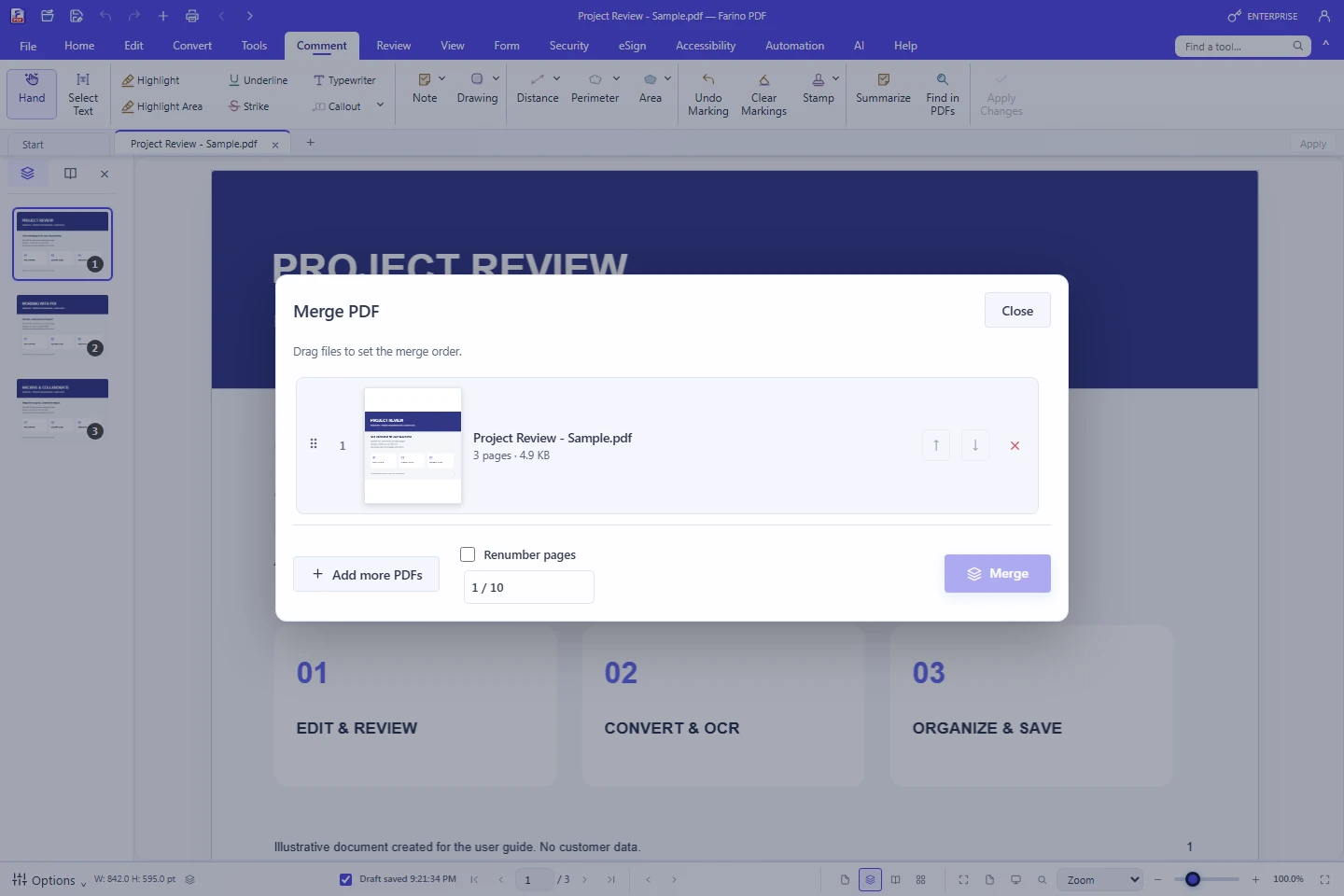
Combine Files uses a popup with a file list and preview.
- Choose Convert > Combine Files and add the PDFs to combine.
- Check the preview. Drag files or use ordering controls; remove unnecessary files from the list.
- Run Merge, inspect the resulting document and save it to your chosen folder.
- To separate pages, choose Tools > Split and set the page/range options. Extract Pages copies selected pages into another document.
FARINO PDF 1.63
13. Office, image and text conversion
Convert creates files for use in other applications.
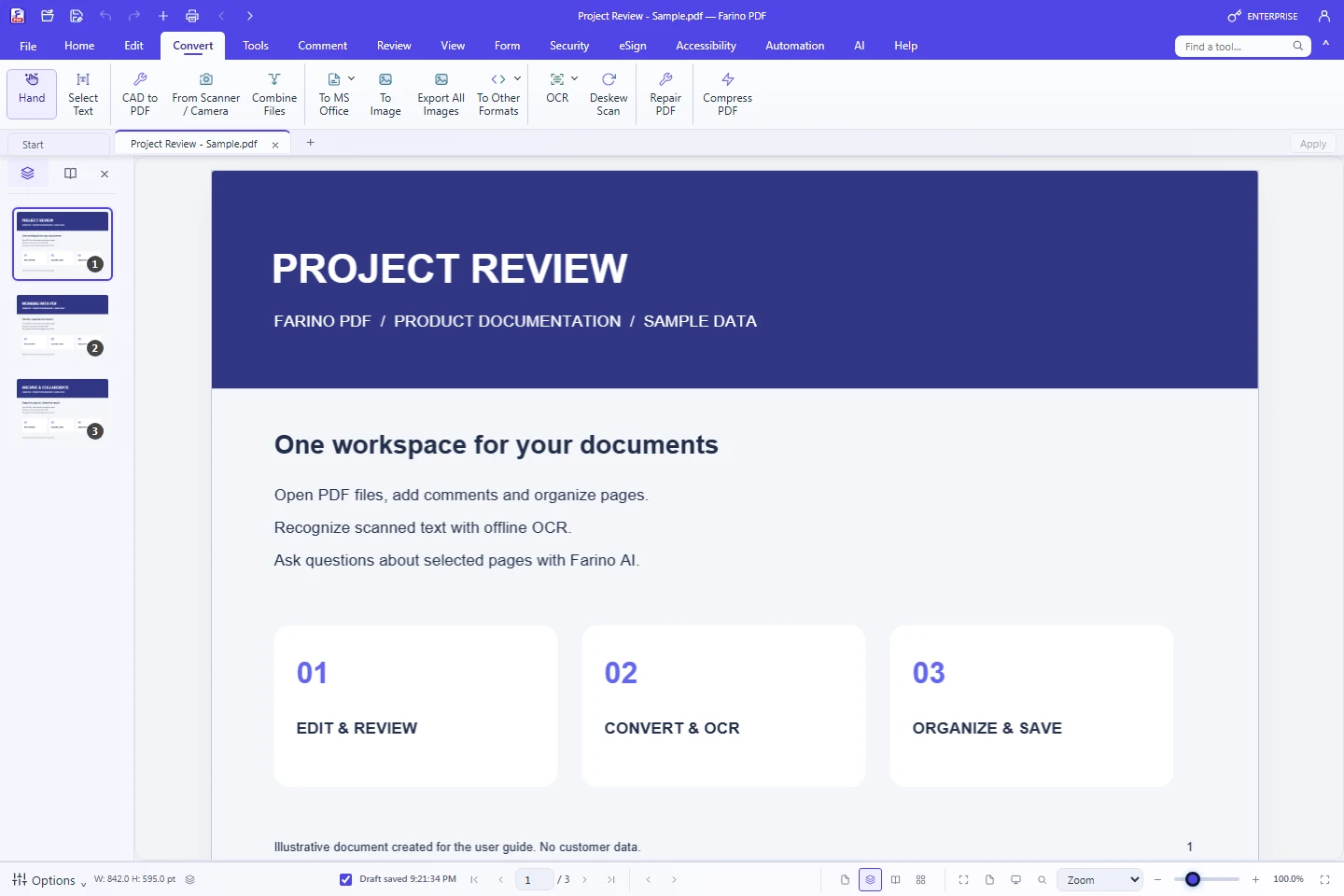
- Open a PDF and choose Convert > To MS Office for Word, Excel or PowerPoint.
- Review the available format settings, run conversion and choose the output destination.
- To Other Formats offers Text, HTML, EPUB, Markdown and PDF/A. Text exports use the active PDF text layer.
- Choose page-to-image conversion for JPG/PNG. Extract Images exports supported image objects.
FARINO PDF 1.63
14. PDF/A-2b archiving
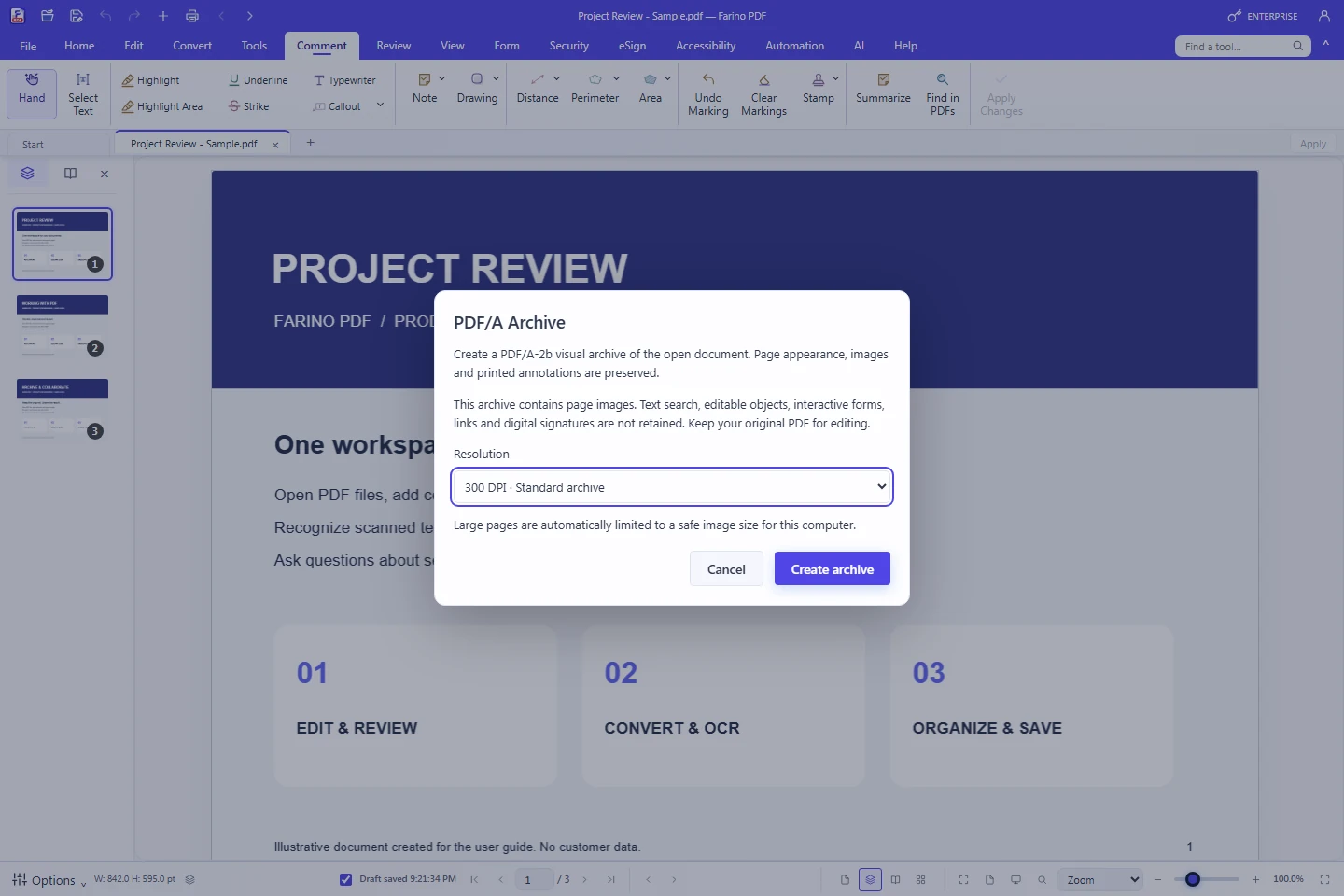
PDF/A Archive creates a visual archive from the active PDF to preserve page appearance.
- Choose Convert > To Other Formats > PDF/A Archive or File > Save As > PDF/A-2b visual archive.
- Select 150 DPI for smaller files, 300 DPI for general use or 600 DPI for fine detail.
- Read the format notice and choose Create archive. Progress shows page number and effective DPI. Cancel stops without saving a partial archive.
- Choose a file name and folder in Windows Save As. Keep the original PDF separately. For compliance workflows, validate each output with veraPDF or your organization’s validator.
FARINO PDF 1.63
15. OCR for scanned documents
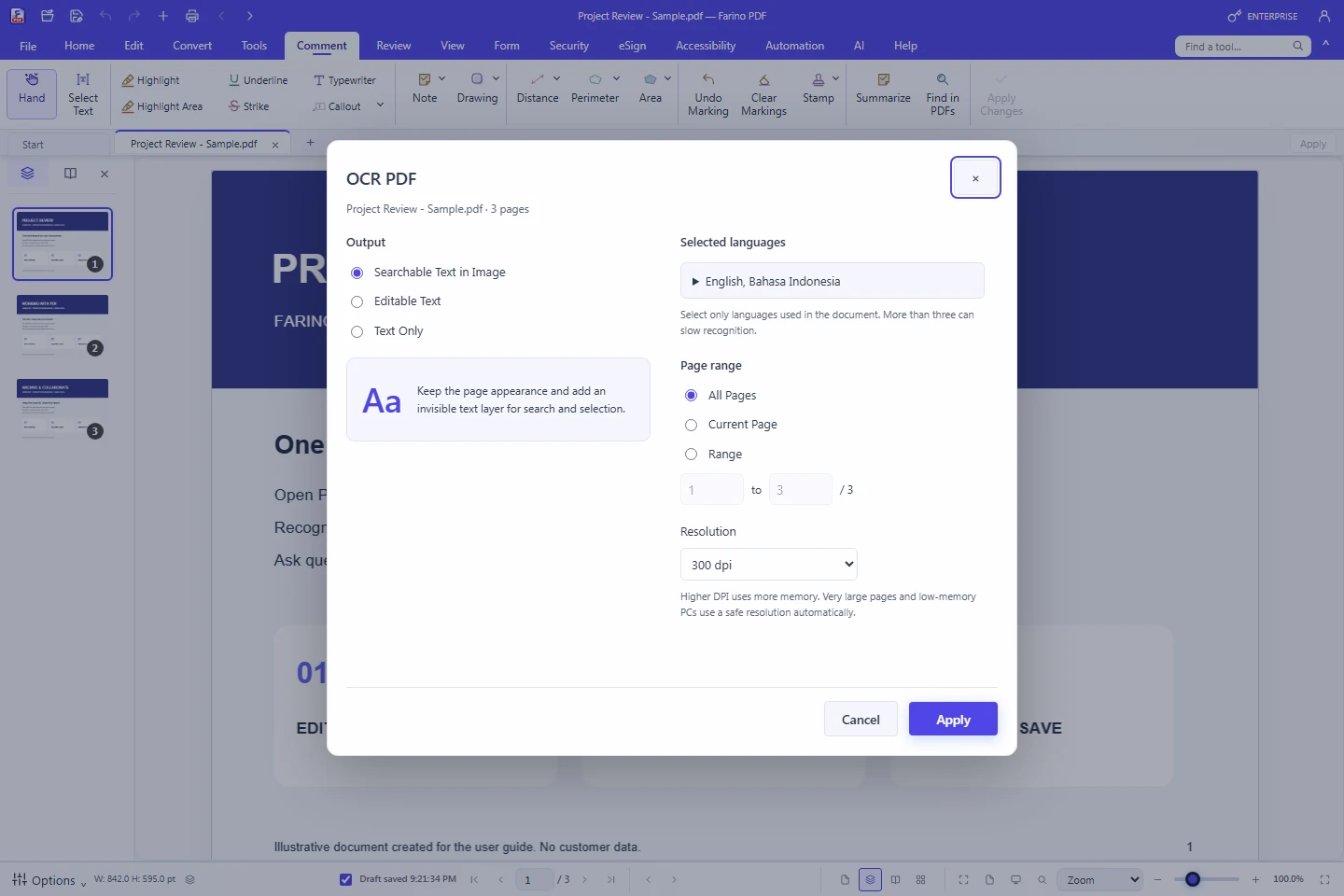
Recognize Text uses local Tesseract OCR; no AI provider or credits are required.
- Choose Convert > OCR > Recognize Text or an available Quick OCR/page command.
- Choose Searchable Text in Image, Editable Text or Text Only for your workflow.
- Select document languages, All Pages, Current Page or Range, and 72, 150, 300 or 600 DPI.
- Choose Apply, wait for progress, inspect the result and Save. Cancel when needed; cancelled partial results are not applied.
FARINO PDF 1.63
16. PDF compression
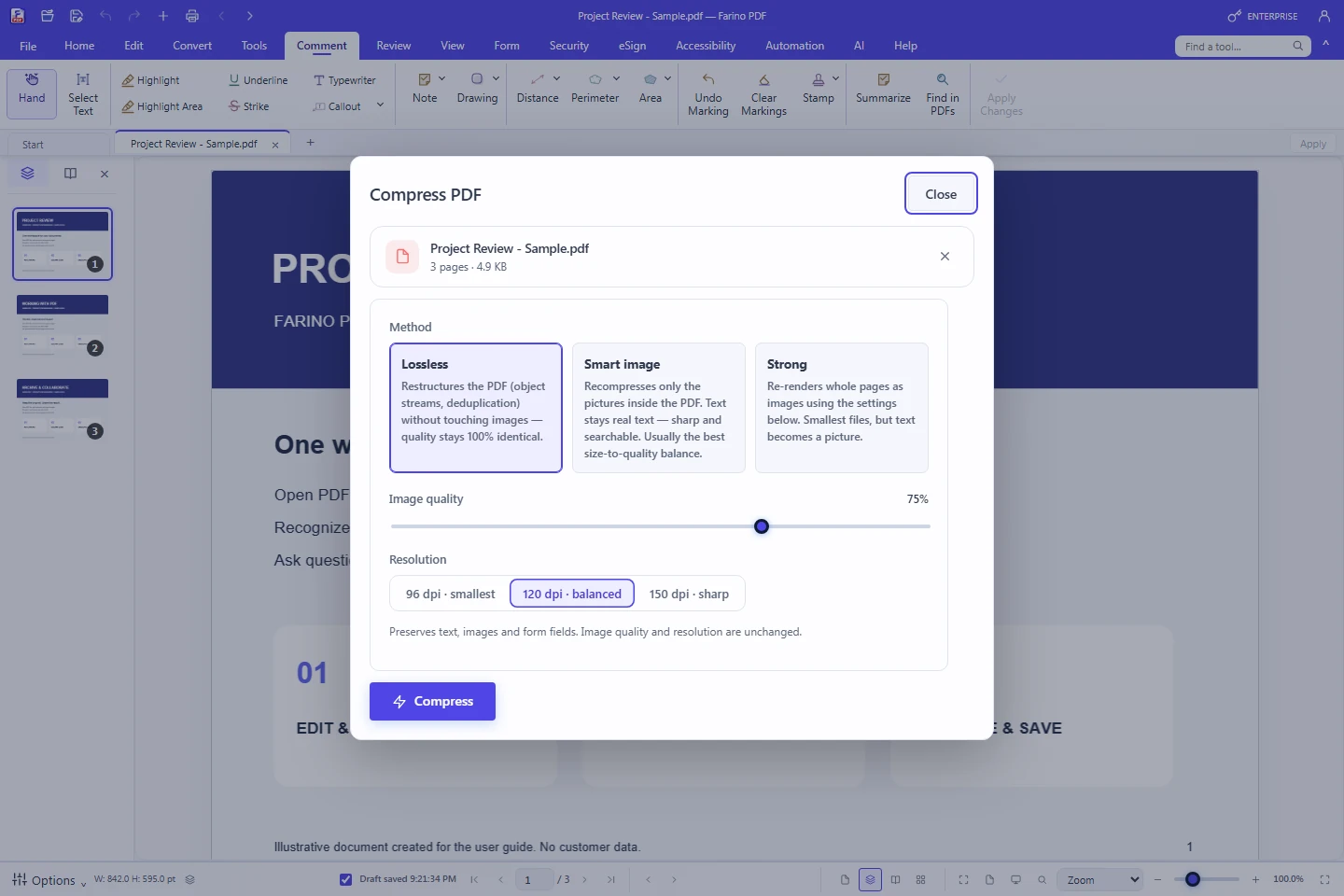
Compress PDF opens a popup for the active document.
- Choose File or Tools > Compress PDF.
- Set image quality and resolution for your destination. Settings are remembered for later use.
- Run compression and compare page quality and output size.
- Use Save As for a copy so the source remains available.
FARINO PDF 1.63
17. Print preview and printing
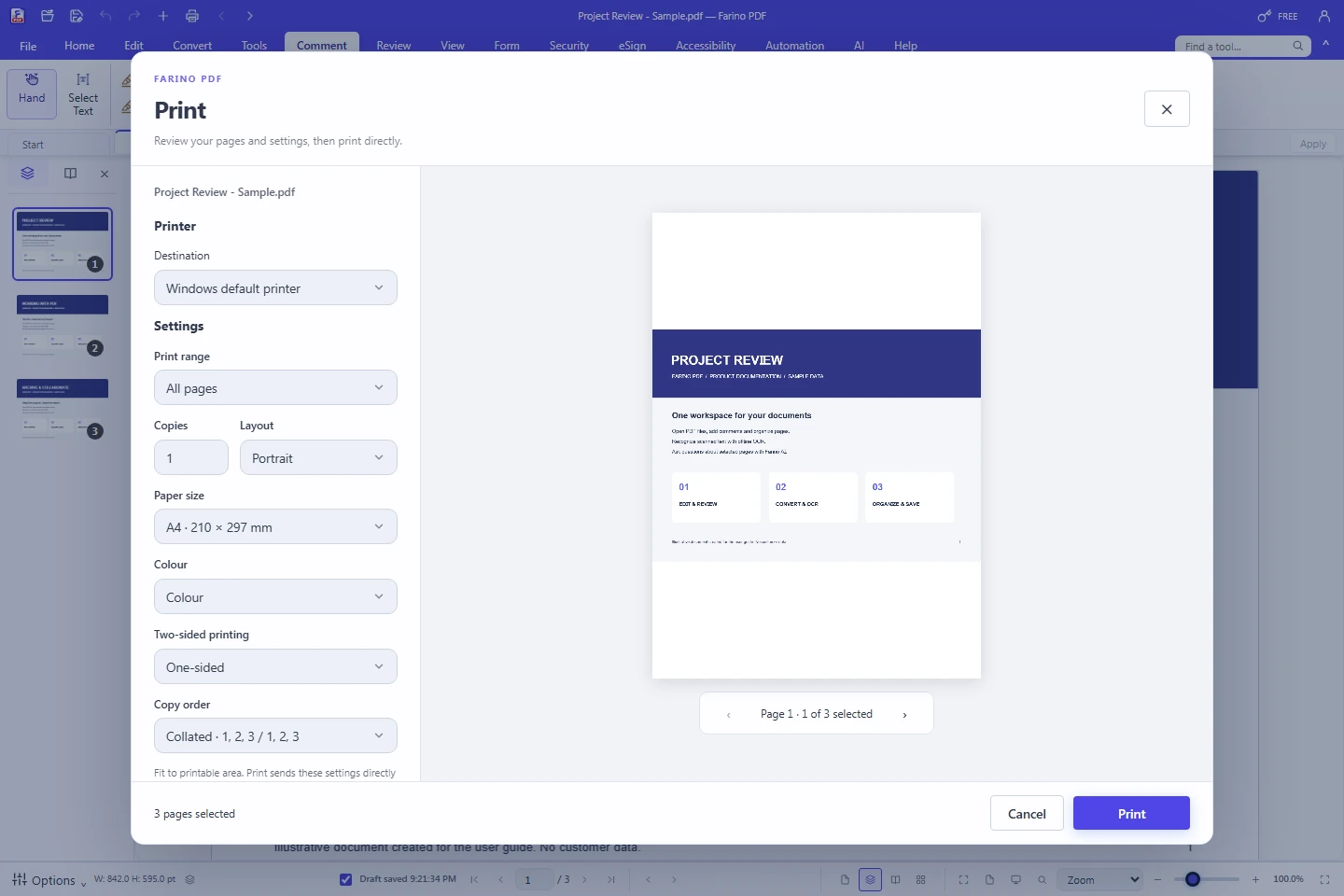
Print provides a preview and print job settings.
- Choose the printer icon or Ctrl+P in the active PDF.
- Select a printer and All Pages, Current Page, a page range or view option where available.
- Set paper, copies, portrait/landscape, color, duplex and collation where supported.
- Check the preview and choose Print. Use Windows printer properties for driver-specific settings.
FARINO PDF 1.63
18. Passwords and redaction
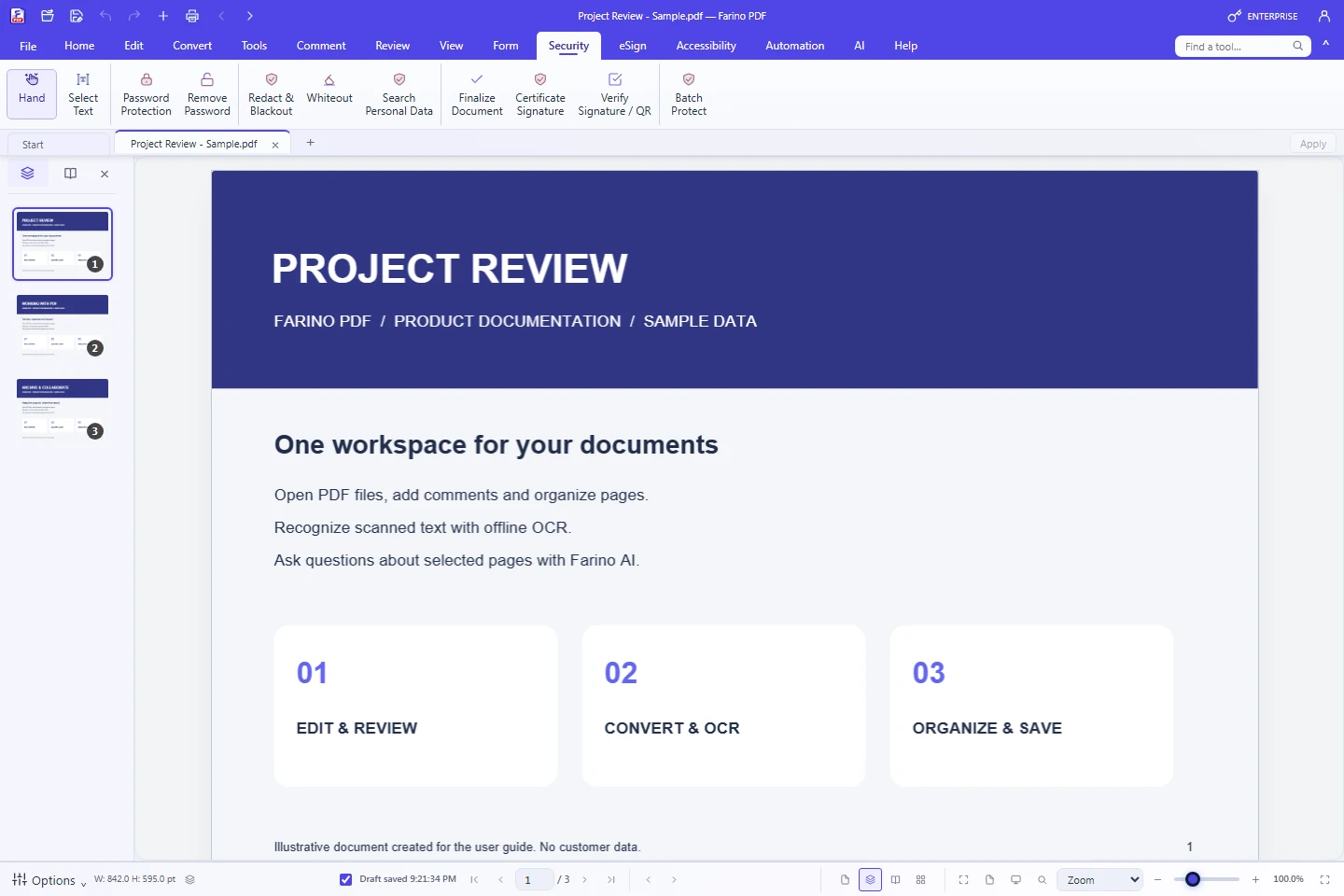
Security helps restrict access and remove sensitive content.
- Password Protection uses the open PDF. Enter and confirm the password as requested, then save the protected result safely.
- Remove Password requires appropriate authorization/password for the active document.
- Choose Redact & Blackout, mark sensitive information and review all marks before Apply.
- Apply processes pages with redaction objects. Save the result and check text search/copy around sensitive regions.
FARINO PDF 1.63
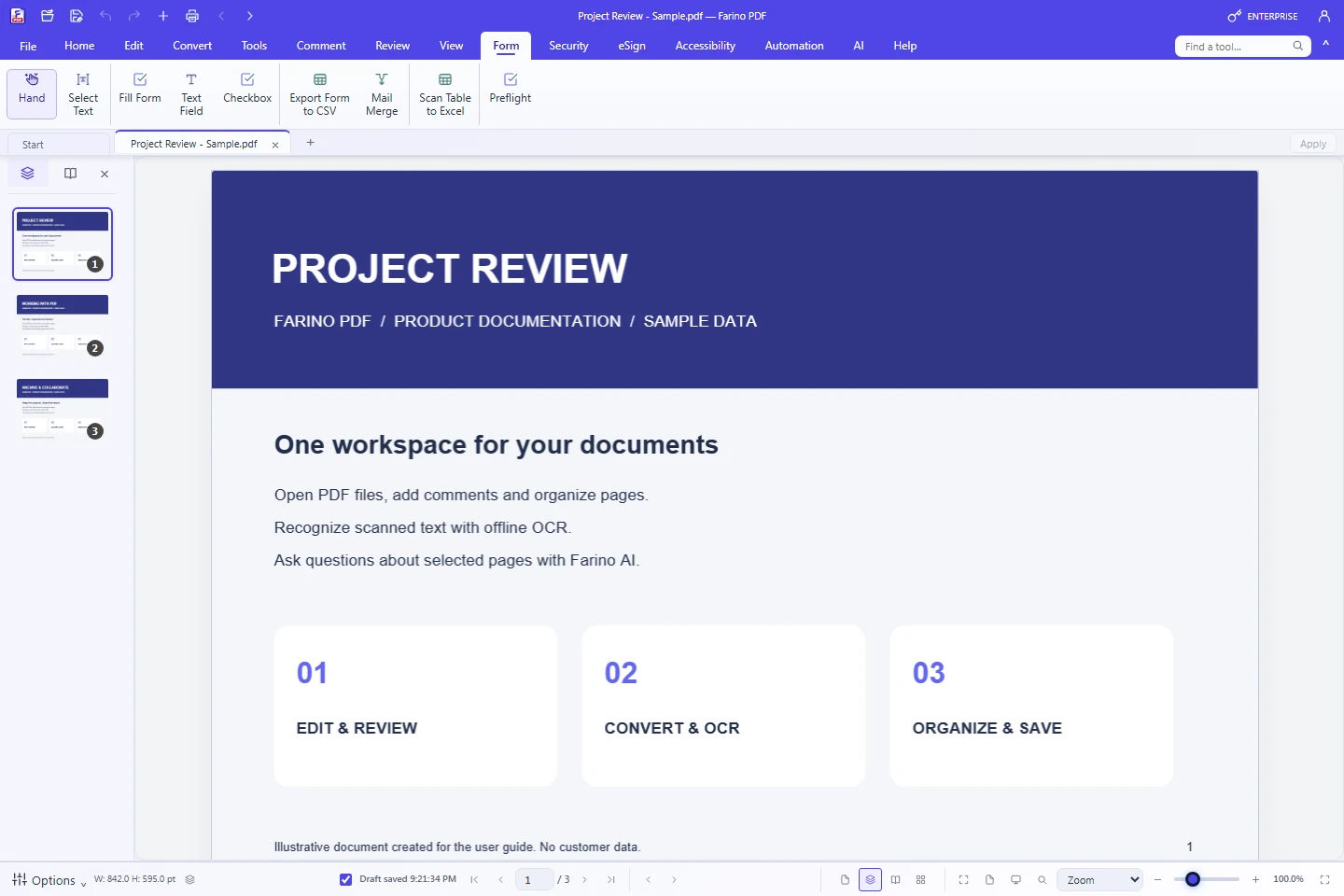
19. Forms, signatures and certificates
Form and eSign support document completion and signing.
- Use Form > Fill Form to complete existing fields.
- Supported editions can create Text Fields/Checkboxes, export form data to CSV or use Mail Merge.
- eSign > Draw Signature or Load Signature places a visual signature.
- Certificate Signature requires an appropriate certificate. Verify checks supported signatures; later document changes may invalidate them.
FARINO PDF 1.63
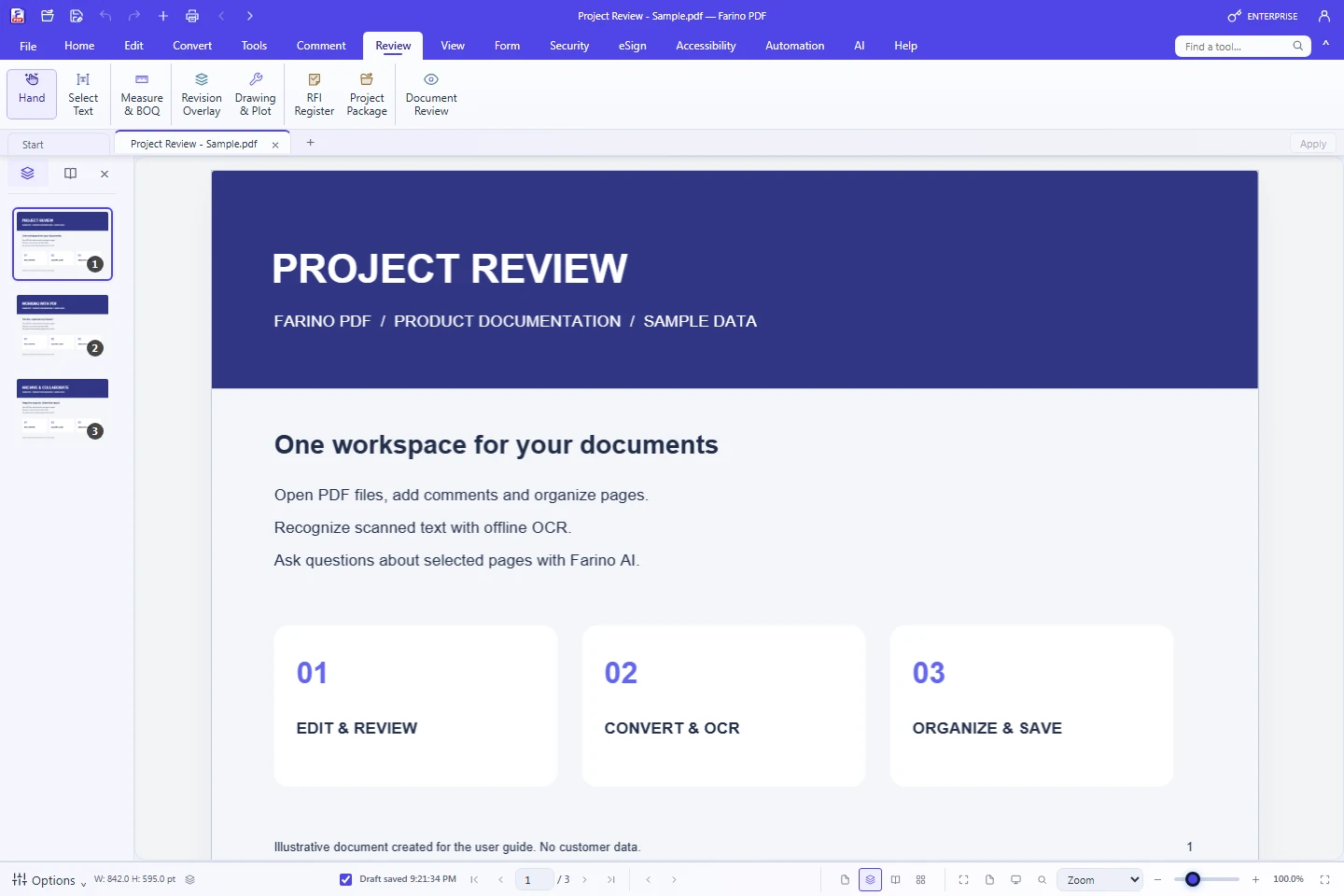
20. Engineering Review
Review groups technical drawing and project review workflows.
- Measure & BOQ: calibrate scale, measure items, assign categories and verify the quantity list before export.
- Revision Overlay: select a comparison revision, align pages and inspect visual changes. Drawing & Plot supports drawing view/plot settings.
- RFI Register: record issues with identifiers, owners, status and page references.
- Project Package groups project outputs. Document Review supports checks and findings. Use the export options provided by each tool.
FARINO PDF 1.63
21. Watermarks, numbering and document tools
Tools provides page adjustments and document marks.
- Watermark adds a text/image mark. Select supported watermark objects to edit, resize and reposition them.
- Header & Footer adds repeated information. Numbering supplies page numbers/Bates/labels according to the selected option.
- Crop adjusts visible page bounds. Reverse Order reverses the sequence; Duplicate Page copies a page.
- Check the range before Apply and keep a copy when changing many pages.
FARINO PDF 1.63
22. Accessibility and automation
Additional tools assist text review and repetitive workflows.
- Accessibility provides Read Aloud, OCR, local text analysis, local translation and Preflight according to edition.
- Local English–Indonesian Translate is separate from online AI Translate and does not spend AI credits.
- Automation provides Batch Processing, Export Profiles, Watch Folder and REST API according to license.
- Test automation on copies first. Choose separate input/output folders and inspect results before a large batch.
FARINO PDF 1.63
23. Using Farino AI
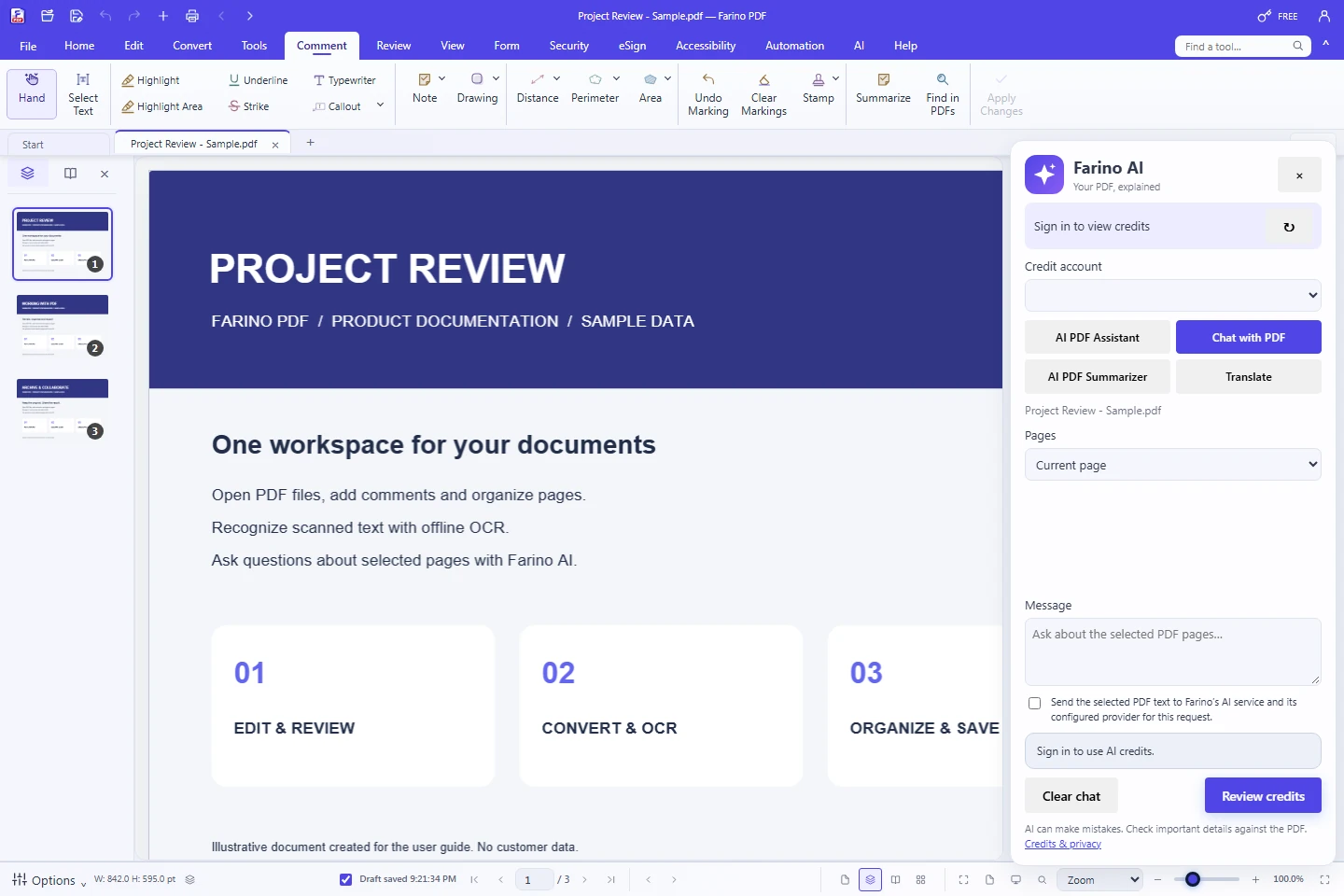
The AI menu opens a right-side form without changing the original PDF.
- Sign in and choose personal or organization credits. Refresh retrieves the latest server balance.
- Choose AI PDF Assistant, Chat with PDF, AI PDF Summarizer or Translate. Select Current Page, All Pages or Page Range.
- Enter a question or target language. Consent to sending text, then choose Review credits to see the reservation limit.
- Choose Send after reviewing credits. The panel shows a copyable answer. Verify [Page N] references against the PDF.
FARINO PDF 1.63
24. AI credits and purchases
The server wallet is shared by the desktop app and portal.
- Open Customer Portal > AI Credits for balance, reservations, usage and pack expiry.
- Choose Personal 1,000, Professional 5,000 or Team 25,000 credits. Check the displayed price when ordering.
- Pay using the instructions and include the AI-order reference. Credits arrive after administrator payment confirmation.
- Each pack lasts 30 days after confirmation without auto-renewal. Failed requests release credits; Check response recovers interrupted responses.
FARINO PDF 1.63
25. Customer portal and devices
The customer portal manages licenses, purchases, accounts and teams.
- Sign in at farinopdf.com/portal using your desktop account.
- My License shows entitlements and devices. Release an old device before moving computers when required by your license.
- Orders show payments and fulfillment status. Check maintenance when purchasing renewals.
- Organization owners/admins manage users, invitations and seats within their permissions. Security manages account security and sessions.
FARINO PDF 1.63
26. Reseller workflow
Resellers manage customers and sales; customers manage their own users and devices.
- Open the reseller panel and add an Individual or Company customer with the correct email.
- Create a license order for the selected customer and verify the beneficiary before submitting.
- Monitor payment and available/allocated licenses. The Customer Admin manages internal users and devices.
- For AI, open AI Credits, choose your own customer and order a pack at the reseller price. Credits go directly to that customer after Farino confirms payment.
FARINO PDF 1.63
27. Administration and monitoring
The dapur panel is restricted to authorized staff.
- Use separate staff accounts and configure login security/2FA according to policy.
- Manage Orders, Licenses, Customers, Resellers and activity against the same server data.
- AI & Credits shows orders, wallets, token usage, charged credits and provider readiness. Confirm payments only after verification.
- AI configuration controls task routing, backend models, package prices, reseller discounts and daily limits. API keys remain in private server configuration.
FARINO PDF 1.63
28. Useful shortcuts
Use keyboard shortcuts to move quickly between common tasks.
- Ctrl+O: open PDF. Ctrl+S: save. Ctrl+P: print. Ctrl+W: close document.
- Ctrl+Z / Ctrl+Y: Undo / Redo. Ctrl+F: find text. Ctrl+K: find a command.
- Ctrl+D: Document Properties. Ctrl+Shift+O: Open Recent. Ctrl+Shift+K: Preferences.
- H: Hand. V: Select Text. Alt: menu access hints. Escape closes the current choice; F6 / Shift+F6 moves focus.
FARINO PDF 1.63
29. Troubleshooting
Keep a copy of the source file and record the error message.
- PDF will not open: try another file, check passwords/source damage and use the latest official installer to restore application components.
- OCR/conversion is slow: reduce DPI/range, close unnecessary tabs and use smaller batches.
- Account/license missing: check internet and Windows time, then Help > License Key > Refresh. Do not manually delete license files.
- AI unavailable: ask your administrator to check private configuration, database migration, provider balance and credits. Never send API keys in a support chat.
- Update or print stalled: check waiting Windows dialogs, the printer queue and free disk space. Report the app version, reproduction steps and a sanitized sample document.
FARINO PDF 1.63
30. Support and safe use
Contact PT Farino Teknologi Indonesia for product support.
- Use the official Contact/Support page or business WhatsApp +6285143743121.
- Include app/site versions, operating system, relevant feature and the complete error message.
- Provide a sample document only when needed and after removing confidential information.
- Keep backups before redaction, bulk page changes, compression, signatures or archival conversion.