Compress PDF
Smaller files with Lossless, Smart image or Strong mode.
All editions, including Free
About this feature
What it does
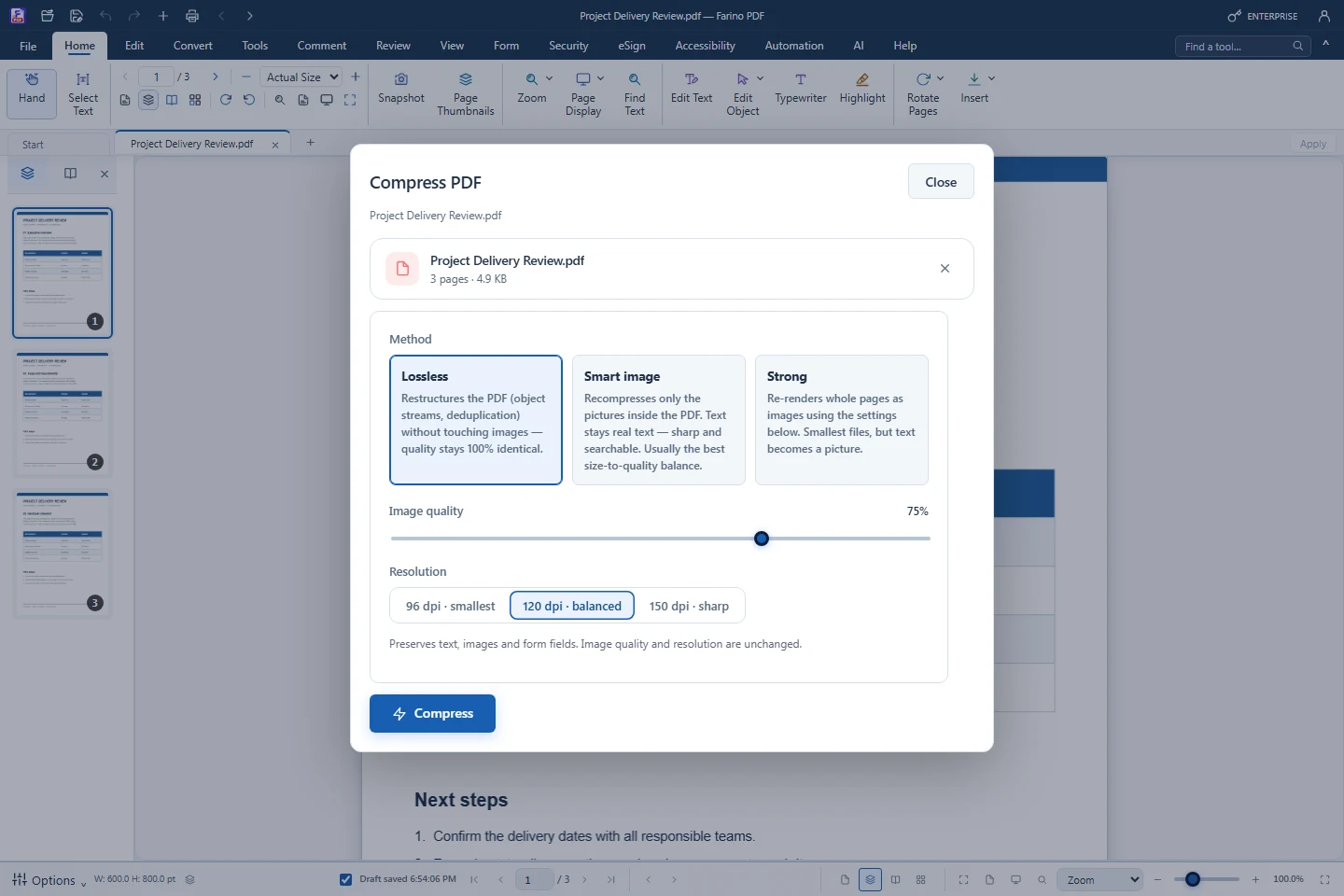
Compress PDF offers three modes. Lossless restructures the file without touching images, Smart image recompresses pictures while text stays real text, and Strong turns pages into JPEG images for the smallest result. The compressed copy opens in a new tab.
- Lossless: identical quality
- Smart image: text stays sharp and searchable
- Strong: 96, 120 or 150 dpi for scans
- Image quality from 30% to 95%
- Original stays unchanged; free edition
How to use it
Short steps in the Farino PDF app. The full guide is in the documentation.
Read the full guideChoose Convert › Compress PDF
The dialog shows the current file size.
Pick a mode and quality
For scans start with Strong at 120 dpi.
Compress and save
Check the -compressed tab, then Save As.
Start with the free edition today.
Upgrade from inside your account when your work needs more.
- Free edition, no account
- Signed installer
- Local support