
About this feature
What it does
Remove Password creates an unprotected copy of a PDF you can already open. It never bypasses or guesses passwords: you type the document password, and the copy is saved with a name ending in -unlocked.pdf.
- Requires the current document password
- Saved as a separate -unlocked.pdf copy
- Protected original is not overwritten
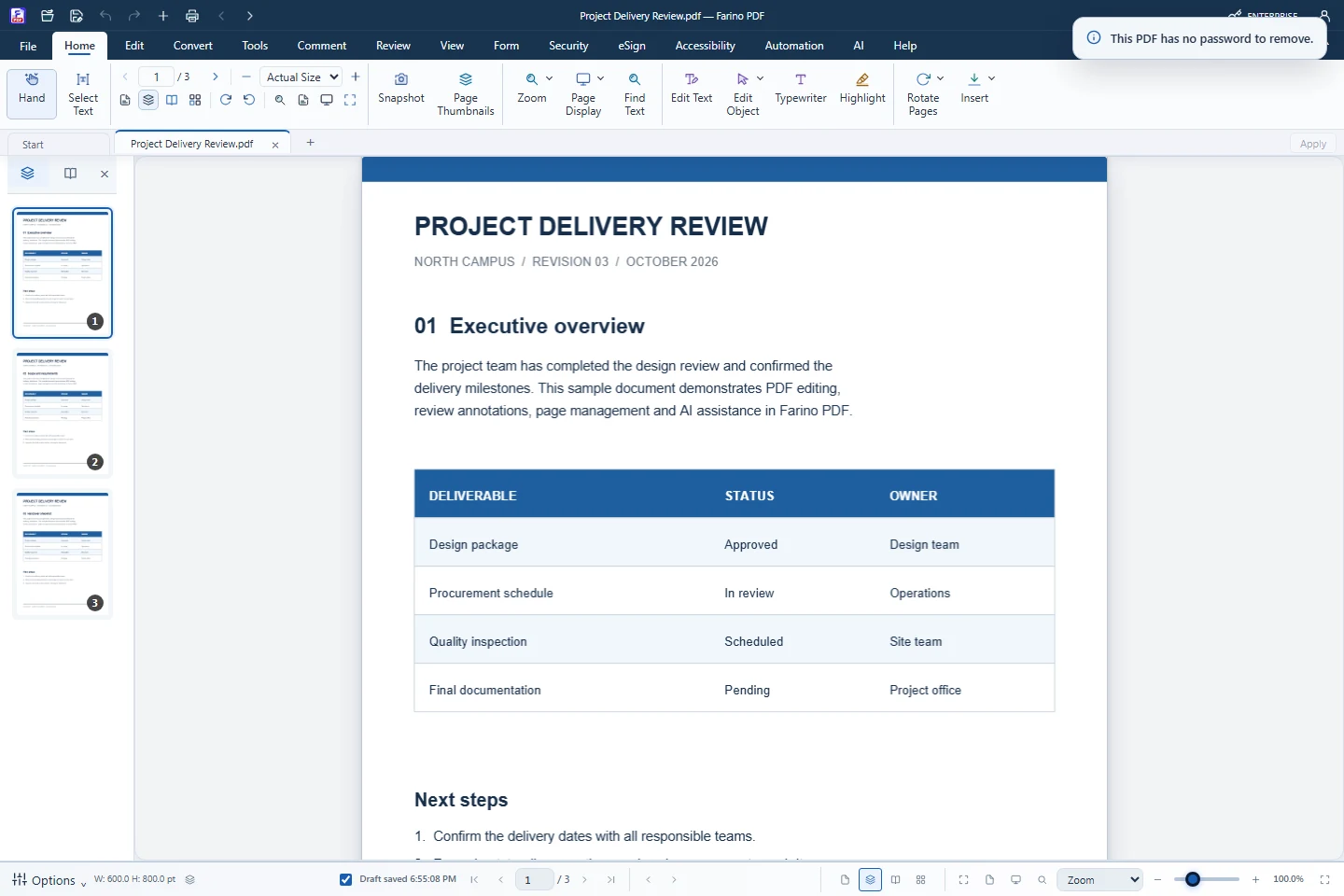
- Clear message when a PDF has no password
- Copy is rebuilt from page images, so keep the original for editable text
How to use it
Short steps in the Farino PDF app. The full guide is in the documentation.
Read the full guideOpen the protected PDF
Enter its password in the Open protected PDF dialog.
Choose Security › Remove Password
Type the password again.
Confirm & Save
Choose where to save the unlocked copy.
Start with the free edition today.
Upgrade from inside your account when your work needs more.
- Free edition, no account
- Signed installer
- Local support